
OK, a few days ago we discussed what a Google Analytics Segment is, and how to create one from scratch.
Today, we’re going to talk about another great way to create a segment, using the R&D (Rip-off & Duplicate;) method. OK, it’a not ‘ripping off’ anyone, it’s using Google’s segment and custom report gallery. The Google Analytics team as well as hundreds of expert contributors have made make their pre-built segments, custom reports and other handy solutions available. Pretty cool! We love the community aspect of this, and how it can really save time.
Here we go!
Go into the Admin tab of your Analytics account.
Click on ‘segments’ in the ‘personal tools and assets’ section. You’ll arrive at this page:
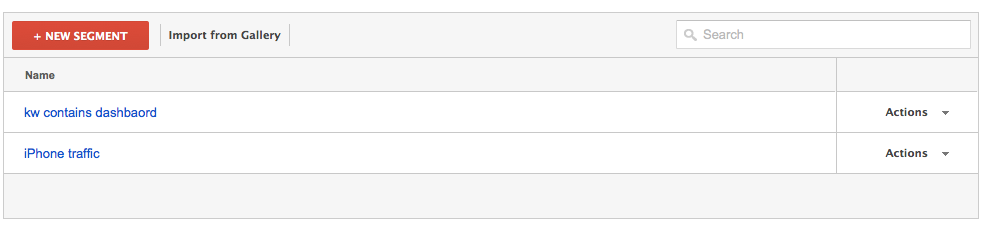
Click on the ‘Import from Gallery’ button. You’ll arrive at the Solutions Gallery, click on ‘segments’ on the left hand side and you’ll see this:
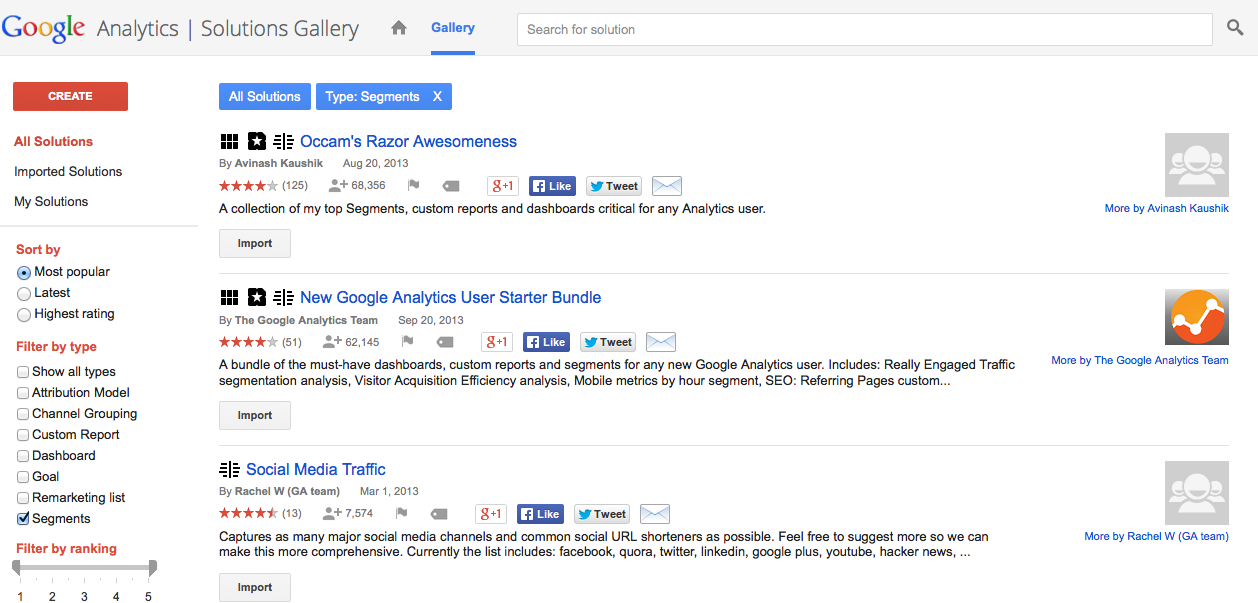
The Google Analytics Segment Gallery
We think Occam’s Razor is one of the best analytics blogs out there, and bingo! He also has the top-rated set of segments. So we’ll choose to import his collection. Once you select to import, you’ll select your analytics profile and which segments from his collection you want to import. And you’ll now see those in your Segment list:
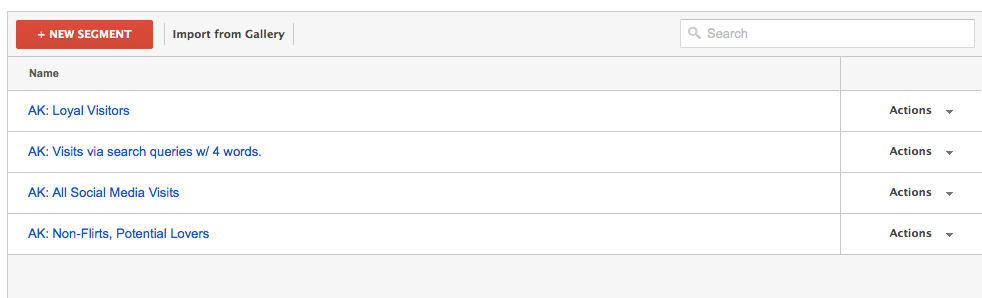
We selected ‘Loyal Visitors’ (3+ sessions) to add as a segment:
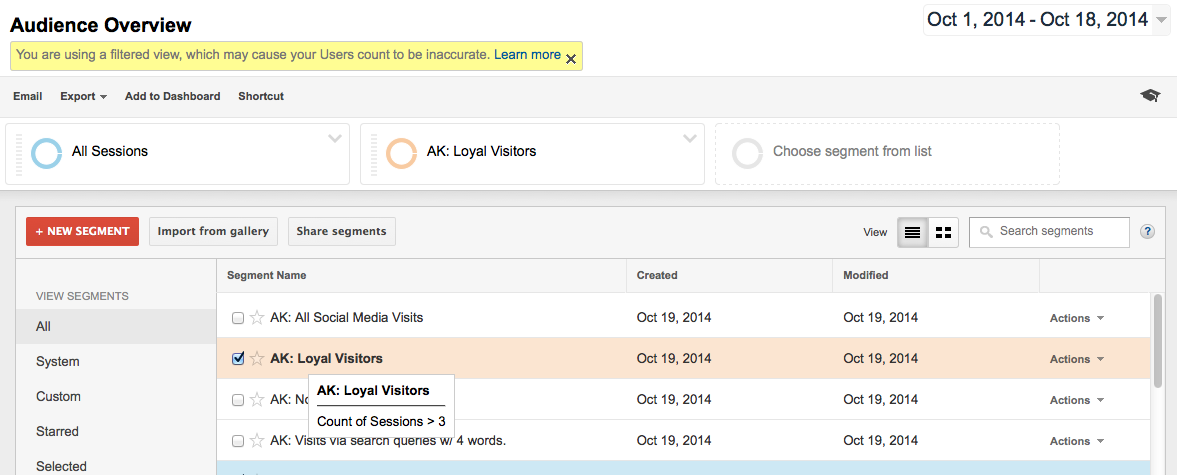 And voila! There ya go:
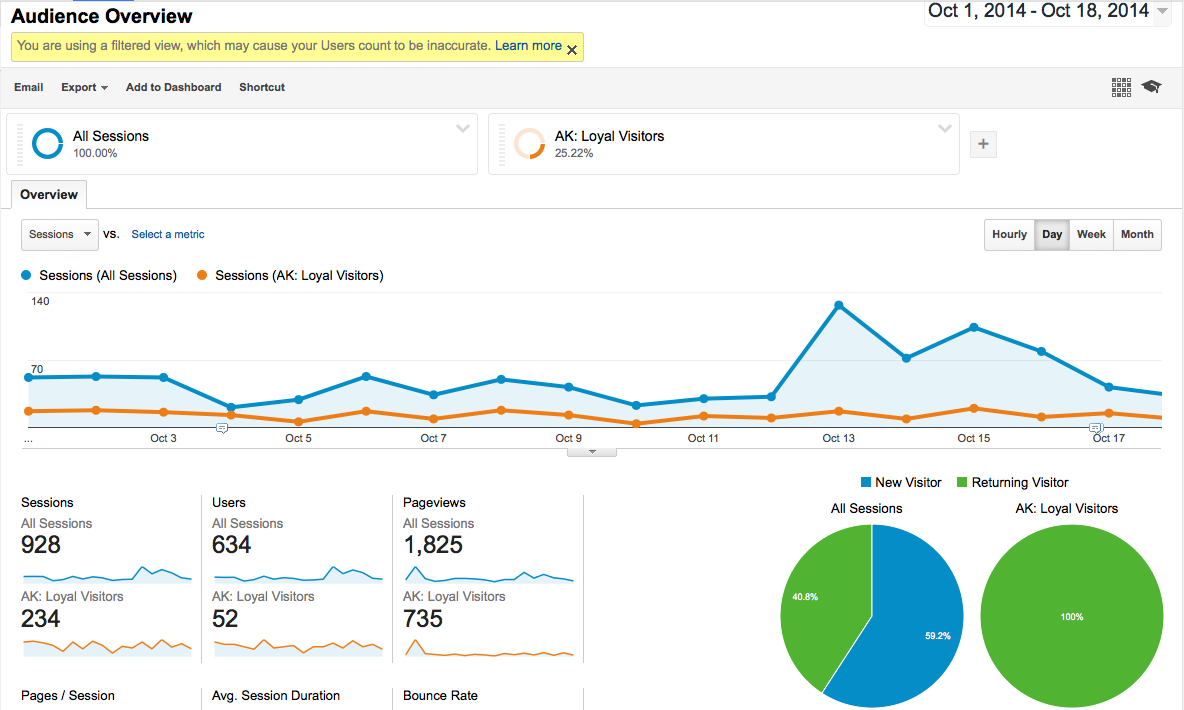
We love the instant, additional insights these provide. In an upcoming post we’ll discuss some more uses of segments to help you understand, take action on and improve your results!